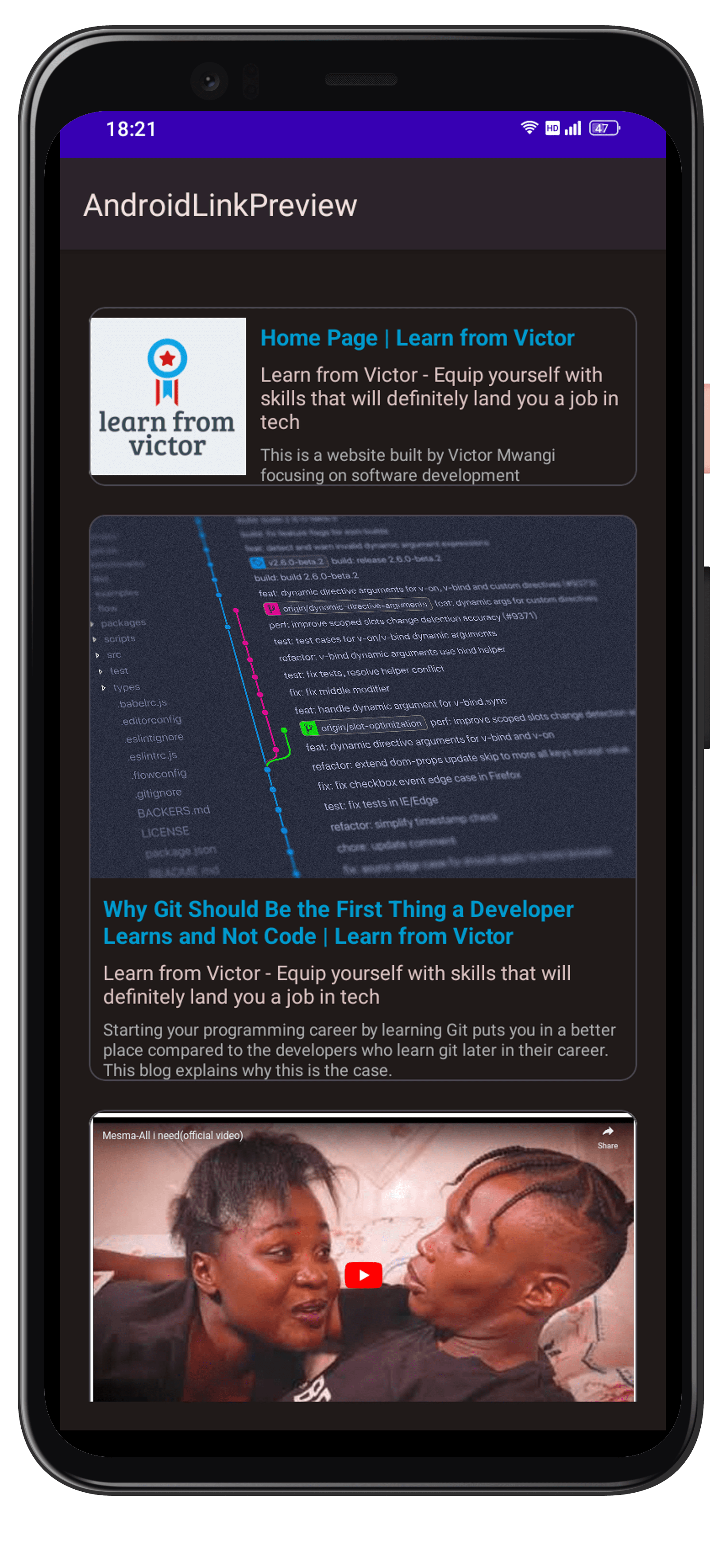
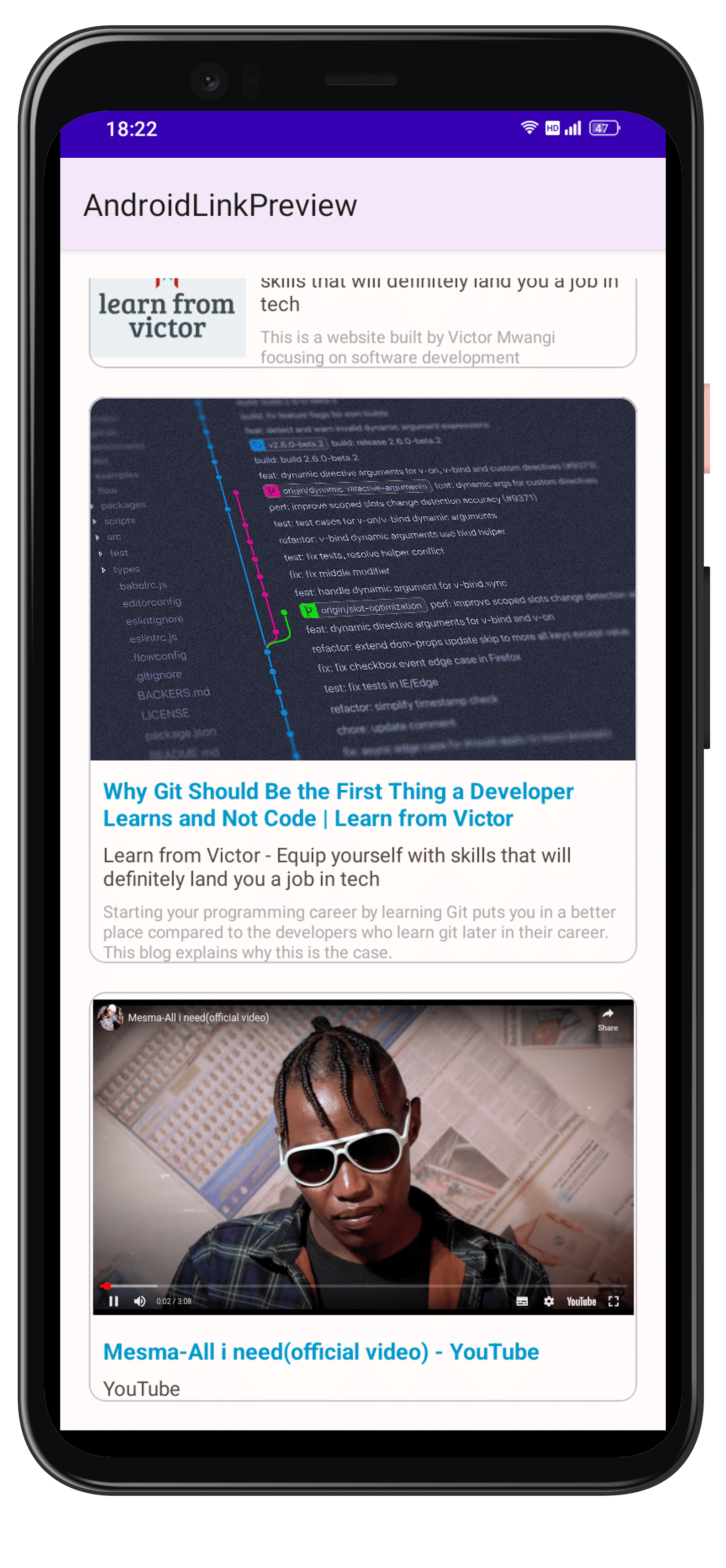
It's impossible for the internet to run without the presence of website links. By using web links, internet users get to share the specific location of certain pieces of information on the World Wide Web. In fact, the reason you found this article is because of a web link. So, how do we make the links in our app more engaging for the users?
We'll be using a library created by Victor Mwangi. It's source code is available on GitHub under the MIT license. I will assume that you are familiar with the fundamentals of Android application development.
Setting up
Now let's dive in.
The library is available on Jitpack, so we'll need to add it as a library source in our settings.gradle file.
dependencyResolutionManagement {
    repositoriesMode.set(RepositoriesMode.FAIL_ON_PROJECT_REPOS)
    repositories {
        google()
        mavenCentral()
        maven { setUrl("https://jitpack.io") }
    }
}
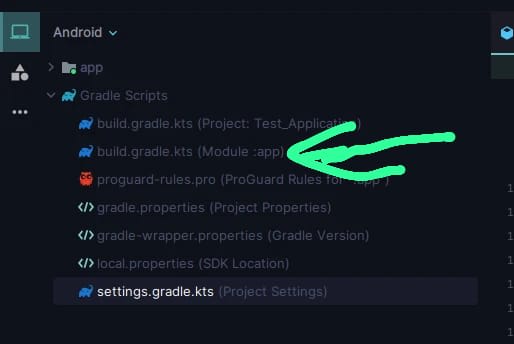
Next, we will include the library as a dependency in the app's build.gradle. Go to the build.gradle file shown in the image below and add the following code.
dependencies {
    implementation("com.github.vikie1:Android-Links-Preview:1.1.3")
}
Usage
We'll begin by adding the following code to our XML layout.
<com.github.vikie1.linkpreview.Preview
        android:layout_width="match_parent"
        android:layout_height="wrap_content"
        android:id="@+id/link_preview"
        android:layout_margin="20dp"
        app:layout_constraintStart_toStartOf="parent"
        app:layout_constraintTop_toTopOf="parent"/>
Next, we use Java to dynamically assign the link.
Preview preview = findViewById(R.id.link_preview);
preview.setData("https://github.com/vikie1");
When you click the link, an Intent will be launched with Intent.Action_View. If you want to customise the click action, you need to call the onClickListener as shown below.
linkPreview.setOnClickListener(new PreviewListener{
    @overide
    void onDataReady(Preview preview){
        // TODO: Add click action
    }
})
Features of the library
- Card variety: The library shows both large and small image cards, depending on the dimensions of the image.
- Youtube video view: Users will be able to play YouTube videos without having to leave your app. This is achieved through the use of YouTube iframe API. It is delivered by the system webview. If, for some reason, the webview can't fetch the iframe, the library defaults to a normal web card with the YouTube video cover photo.
Note: This library will require an internet connection to work. Also, for the YouTube iframe to player to work, hardware acceleration is enabled in the manifest of the library.
Footnote: Thank you for your time. I hope this blog helped you. I wish you all the best. Feel free to follow me on social media (links in the footer).